Image Compression Explained: How to Reduce File Size Without Losing Quality
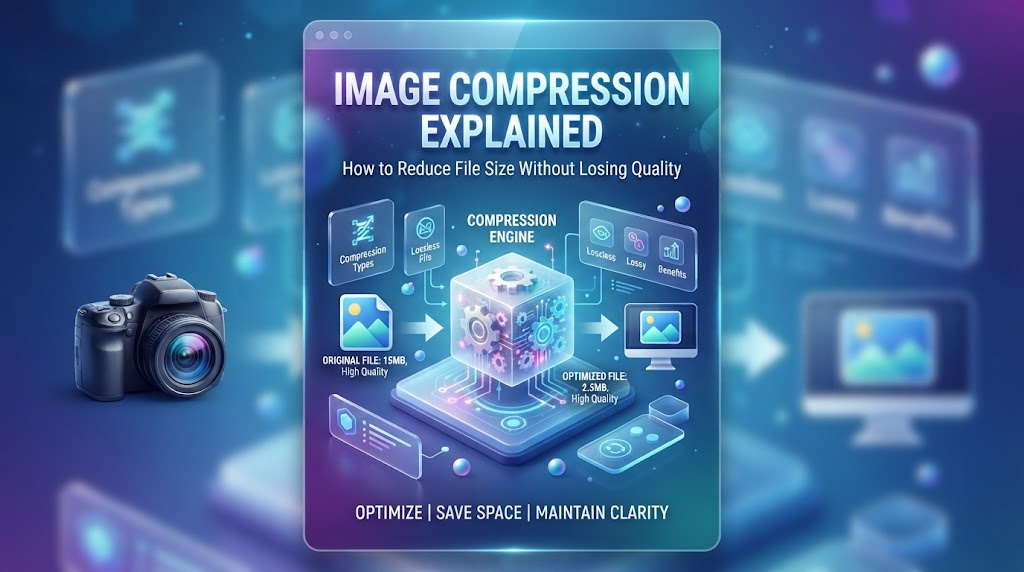
High-quality images can make a website feel polished, help a product stand out, and make online content more memorable. Yet those same images can become a problem when their files are larger than necessary. Slow-loading pages, lengthy uploads, and limited storage are common frustrations for anyone who regularly works with digital visuals.
The solution isn’t to avoid using images or sacrifice their appearance. It’s to understand how image compression works and how to apply it without removing the details that make a visual effective. Whether you’re running a blog, managing an online store, or creating marketing materials, a few smart adjustments can make your images easier to use while keeping them looking professional.
What Is Image Compression?
Image compression is the process of reducing the amount of data required to store an image. The goal is to make the file smaller while maintaining an acceptable level of visual quality.
Consider a photographer preparing images for a personal portfolio. The original photographs may be several megabytes each, which is useful for printing or detailed editing. However, visitors viewing those photographs on a website may not need the full-size originals. Optimizing the files can make the portfolio faster to browse without making the photographs noticeably worse.
The same principle applies to blog illustrations, online product listings, email newsletters, and social media graphics. The ideal file size depends on where the image will appear and how much detail the viewer needs.
Why Smaller Images Make a Difference
Image optimization offers several practical benefits, particularly for websites that rely heavily on visual content.
Faster page loading
Large images require more data to download. When a page contains several oversized photographs, visitors may have to wait longer before everything appears. Smaller image files can help reduce that burden, especially for people using slower mobile connections.
A better mobile experience
Mobile users may have limited bandwidth or inconsistent connections. Optimized images make browsing more convenient and help reduce unnecessary data usage.
Easier file sharing
Large files can be inconvenient to attach to emails, upload to online platforms, or send to colleagues. Reducing their size makes everyday collaboration simpler.
More efficient storage
Photographers, designers, and marketing teams often maintain extensive image libraries. Keeping appropriately optimized copies can help manage storage without requiring every working file to remain at its original size.
How to Compress Images Effectively
The right compression method depends on your image and the result you want to achieve. For a simple workflow, an online image compressor can help reduce file sizes when preparing images for websites, documents, and other digital projects.
However, compression is only one part of the process. Before changing an image, consider its dimensions, file format, and intended destination. A large photograph used as a homepage banner has different requirements from a small icon or a product thumbnail.
A thoughtful approach helps you avoid making files unnecessarily large or reducing quality more than necessary.
Understand the Difference Between Lossy and Lossless Compression
Two common compression methods work in different ways, and knowing their strengths can help you choose the right option.
Lossy compression
Lossy compression reduces file size by removing some image information. Depending on the compression level, the difference may be barely noticeable or clearly visible.
This method is widely used for photographs because it can produce substantial reductions in file size. For example, a travel blogger may be able to reduce the size of landscape photographs while preserving the colors and details readers notice most.
The key is moderation. Excessive compression can make textures look unnatural, soften edges, or introduce visible artifacts. Always inspect the final result before publishing it.
Lossless compression
Lossless compression reduces file size without permanently discarding image information. It is useful when preserving the original visual data is important.
Screenshots, diagrams, and certain graphics may benefit from this approach. The reduction can be less dramatic than with lossy compression, but it offers greater confidence that the original details remain intact.
Neither technique is ideal for every image. Your choice should reflect the visual requirements of the project.
Resize Images Before Uploading Them
One of the easiest ways to reduce image file size is to make sure its dimensions match the space where it will appear.
Imagine uploading a 4,000-pixel-wide photograph to a blog where the content area displays it at 900 pixels wide. Depending on the layout and display requirements, the original dimensions may be unnecessary.
Resizing the image before uploading it can reduce the amount of data that needs to be stored and downloaded. It can also make subsequent compression more effective.
Here are a few practical guidelines:
- Blog articles: Use dimensions that suit the width of the main content area.
- Online stores: Preserve enough detail for shoppers to examine products clearly.
- Email newsletters: Keep images appropriately sized so they display well on smaller screens.
- Social media posts: Prepare visuals for the platform and placement where they will appear.
- Thumbnails: Avoid using full-resolution photographs when a smaller version is sufficient.
Be careful not to resize images too aggressively. If visitors need to zoom in on product details or view photographs on high-resolution screens, additional pixels may be necessary.
Select the Right File Format
Different image formats serve different purposes. Choosing the right one can improve the balance between appearance and file size.
JPEG is commonly used for photographs and realistic images with many colors. It can provide relatively small files, although aggressive compression may affect fine details.
PNG is useful for screenshots, graphics, and images that require transparency. It can preserve sharp edges, but photographic files may be larger than equivalent alternatives.
WebP supports both lossy and lossless compression and can produce efficient results for web content. It’s worth considering when your website and publishing tools support it.
SVG is designed for vector graphics, such as logos, icons, and illustrations. Unlike ordinary pixel-based images, vector graphics can scale to different sizes without becoming blurry.
Before converting an image, check that the destination platform supports the format. A smaller file isn’t helpful if it cannot be displayed correctly where you need it.
A Practical Image Optimization Workflow
You don’t need complicated software or an elaborate process to get reliable results. A simple routine can help you avoid common mistakes.
Step 1: Save an original copy
Keep the original image somewhere safe before editing or compressing it. This allows you to create another version later if your requirements change.
Step 2: Check the dimensions
Determine how large the image needs to appear. If it’s significantly larger than the intended display area, consider resizing it first.
Step 3: Apply suitable compression
Start with moderate compression rather than immediately targeting the smallest possible file. This gives you room to reduce the size without unnecessarily damaging the image.
Step 4: Compare the versions
Look at the original and compressed images side by side. Pay attention to fine text, faces, thin lines, gradients, and detailed textures.
Step 5: Review the final file
Check both the file size and the visual result. If the image is still unnecessarily large, try a different format or adjust its dimensions.
Step 6: Preview it in context
Place the image on the actual webpage or document whenever possible. An image that looks good in isolation should also remain clear in its intended layout.
Common Image Compression Mistakes
A frequent mistake is repeatedly compressing the same image. With lossy compression, each additional round can introduce further quality loss. Working from the original file is usually the safer approach.
Another problem is treating the smallest file size as the only measure of success. A product photograph that no longer shows important details may create a poor shopping experience, even if it loads quickly.
It’s also important to maintain consistency. Websites often look more professional when images follow similar standards for dimensions, quality, and format. Establishing a basic process is especially useful when several people contribute to the same content library.
Finally, remember that compression alone doesn’t guarantee a fast website. Hosting performance, caching, page design, and other technical factors also influence loading times. Image optimization works best as part of a broader performance strategy.
Make Image Optimization Part of Your Routine
The best results usually come from consistent habits rather than one-time fixes. Before publishing an image, check its dimensions, select an appropriate format, apply compression where needed, and review the final version.
For teams that create content regularly, a shared checklist can make the process easier to repeat. Keeping original files organized also helps prevent accidental quality loss when images need to be updated later.
Conclusion
Image compression helps make digital content lighter, easier to share, and more efficient to display. By choosing appropriate formats, resizing images thoughtfully, and checking quality before publishing, you can reduce unnecessary file sizes without compromising the visual experience. A few simple habits can make a meaningful difference to both your workflow and your audience.